Grand Theft Auto: San Andreas on mobile is an impressive technical achievement. Rockstar Games and War Drum Studios rebuilt the classic RenderWare engine with dynamic lighting, real-time car reflections, high-resolution character textures, and full widescreen support. However, without proper graphics configuration, the game can suffer from aggressive stutter, battery drain, and thermal throttling even on relatively modern smartphones.
The default graphics presets are rarely optimized for individual processor architectures. Finding the right balance between crisp visual fidelity and buttery-smooth gameplay requires fine-tuning each toggle in the Display Setup menu. If you want a version that already comes fully optimized with unlocked frame rates and high-definition textures, download our tested GTA San Andreas Mod APK. Otherwise, use this guide to configure your mobile settings for the best possible experience.
Understanding Every In-Game Graphics Setting
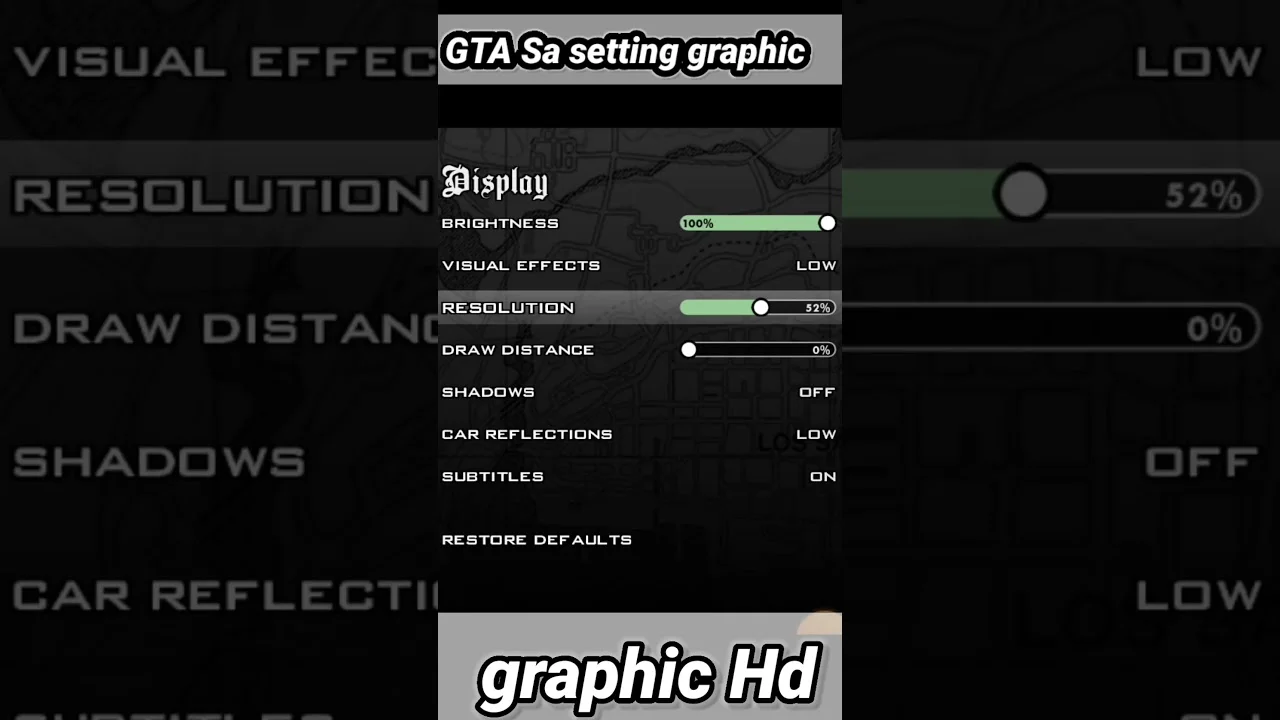
To access the visual controls, pause the game, swipe to Options, and tap Display Setup. Here is what every slider and toggle actually controls under the hood:
1. Visual Effects (Low, Medium, High, Max)
This is the master graphics switch. It dictates particle density, explosion effects, smoke volume, asphalt heat haze in the desert, and surface specular highlights:
- Low: Disables heat haze, dynamic lighting, and complex vehicle highlights. Ideal for low-end chipsets.
- Medium: Restores basic dynamic lighting and tire smoke while disabling heavy post-processing filters. This is the sweet spot for budget gaming phones.
- High: Enables realistic headlight beams, environmental lighting on wet pavement, and full particle effects.
- Max: Adds heavy bloom, intense specular reflections on metals, and detailed weather effects. It looks gorgeous but taxes mobile GPUs heavily during rainstorms.
2. Resolution (0% to 100%)
The Resolution slider controls the internal 3D rendering buffer relative to your smartphone screen's native resolution. At 100%, the game renders at full native resolution (often 1080p, 1440p, or higher). Setting this slider to 70% to 80% dramatically reduces GPU workload while keeping the HUD and text razor-sharp.
3. Draw Distance (0% to 100%)
Draw distance controls how far into the horizon world geometry, buildings, palm trees, and traffic spawn. Pushing this to 100% forces your phone's CPU to process hundreds of distant draw calls simultaneously, which is the primary cause of sudden frame drops when flying planes or driving along Vinewood Hills. Keeping this slider at 50% to 60% eliminates pop-in while preserving frame stability.
4. Shadows (Off, Classic, Advanced)
Shadows add immense depth to the world of San Andreas:
- Off: Disables character and vehicle shadows completely. (Gains +5 to +8 FPS on weak phones).
- Classic: Renders simple circular blob shadows beneath CJ and vehicles. Very lightweight on system memory.
- Advanced: Renders accurate real-time directional stencil shadows that stretch based on the in-game sun's position. Highly recommended if your device has 4GB RAM or more.
5. Car Reflections (Off, Low, Detail, Realtime)
Car reflections control the shine on vehicle paintwork. Realtime reflections render a live secondary cubemap of nearby buildings and sky onto car hoods, which reduces frame rates by up to 35% in heavy downtown traffic. Setting Car Reflections to Detail or Low provides a glossy metallic look with virtually zero performance penalty.
Best Graphics Settings Profiles by Phone Tier
| Hardware Category | Recommended Settings | Target FPS | Expected Battery Life |
|---|---|---|---|
| Low-End (2GB-3GB RAM) Helio G35, Snapdragon 400 series | Visuals: Low Res: 60% Draw: 40% Shadows: Off Reflections: Off | Stable 30 FPS | 4 to 5 hours |
| Mid-Range (4GB-6GB RAM) Snapdragon 700 series, Dimensity 800-1200 | Visuals: Medium/High Res: 75% Draw: 60% Shadows: Classic/Advanced Reflections: Detail | Smooth 50-60 FPS | 3.5 to 4.5 hours |
| Flagship (8GB+ RAM) Snapdragon 8 Gen 1-3, Apple A15-A18 | Visuals: Max Res: 90-100% Draw: 80% Shadows: Advanced Reflections: Realtime | Locked 60 FPS | 3 to 4 hours |
How to Unlock True 60 FPS on Android
By default, the Android port of GTA San Andreas includes a hardcoded 30 FPS frame limiter to conserve battery on older 2013-era hardware. On modern high-refresh screens (90Hz or 120Hz), 30 FPS can look choppy.
To unlock fluid 60 FPS gameplay:
- Open your file manager and navigate to:
Android/data/com.rockstargames.gtasa/files/. - Locate the settings file named
gta_sa.set. - If you use a hex editor or custom configuration patch, locate the frame limit byte (offset
0x24) and modify the value from0x01(locked) to0x00(unlocked). - Alternatively, install a pre-patched APK built with the 60 FPS flag enabled by default.
5 Pro Tips to Prevent Stutter and Thermal Throttling
- Disable Battery Saver Mode: Android battery saver throttles CPU performance by up to 50%, introducing stutter during high-speed driving. Keep battery saver turned off while gaming.
- Add GTA to Your Device's Game Launcher: Tools like Samsung Game Booster or Xiaomi Game Turbo allocate dedicated GPU memory and disable background notifications for consistent frame pacing.
- Lower Brightness by 15%: Playing at 100% screen brightness combined with intense 3D processing rapidly generates heat, triggering the phone's thermal safety governor within 15 minutes of play.
- Turn Off Subtitles if Experiencing Micro-Stutter: In rare Android firmware versions, font rendering for subtitles causes minor micro-stutter when NPCs shout dialogue.
- Close Memory-Heavy Social Apps: Clear social media and browser tabs before launching San Andreas to free up system RAM.
Frequently Asked Questions
Can you run GTA San Andreas at 60 FPS on Android?
Yes. While the standard Google Play release locks frame rates to 30 FPS, modern mobile hardware easily handles 60 FPS. You can unlock 60 FPS by editing the frame limit parameter inside the gta_sa.set configuration file or by installing a pre-configured 60 FPS unlocked APK.
Which graphics setting impacts performance the most in GTA SA mobile?
Visual Effects and Car Reflections impact performance the most. Setting Car Reflections to "Realtime" forces the game engine to calculate dual-pass environmental reflections on vehicle paint, cutting frame rates by up to 35% on budget processors.
Why is GTA San Andreas lagging on my phone despite good specs?
Lag on capable devices is usually caused by aggressive thermal throttling, Android battery saver modes limiting CPU clock speeds, or setting the Draw Distance slider to 100%, which overloads the mobile CPU with excessive background draw calls.
What is the best resolution setting for GTA San Andreas mobile?
Setting Resolution to 70% to 80% provides the sweet spot between crisp image clarity and smooth frame pacing. Setting resolution to 100% renders native 1080p or 1440p displays, which causes battery drain and heating on older chipsets.
Does decreasing Draw Distance cause objects to pop in?
Setting Draw Distance below 40% will cause noticeable pop-in for street lamps, trees, and oncoming traffic. Keeping Draw Distance around 50% to 65% prevents visible pop-in while preserving stable frame rates.